🚀 Getting started
 Your onboarding guide
 Accessing your Qogita seller accountUnderstand your seller portalGet help from Qogita
📦 List your stock
 Upload and manage your price listSet your minimum order value
 Stock list types
 Keep your stock up to dateResponsible Person requirementsSelling electronics
🚚 Your first order
 Fulfil an order
 Packaging requirements
 Shipping dangerous goods
 Regenerate a shipping label
🇬🇧 Selling to the United Kingdom
 Selling to the UK
 Qogita's legal entity and VAT details
 Customs for parcel shipments from Germany
🇺🇸 Selling from the United States
Selling from the United StatesShip your own orders in the United States💶 Get paid
Request your paymentTrack your paymentInvoices and value-added taxGet your supporting documentsGet help with a payment problem⚖️ Claims
Understand a claimDispute a claimClaim costs and returnsKeep your claim rate low📈 Grow
Seller metricsGrowing your businessBulk pricingSelling pre-ordersEnterprise ordersUpload and manage your price list
Your price list tells buyers what you sell, how many units you have and your price. You upload it and keep it current on the Price Lists page in the seller portal.
From this page you can add, edit or delete a price list. A banner tells you if any active price list is missing volume pricing.
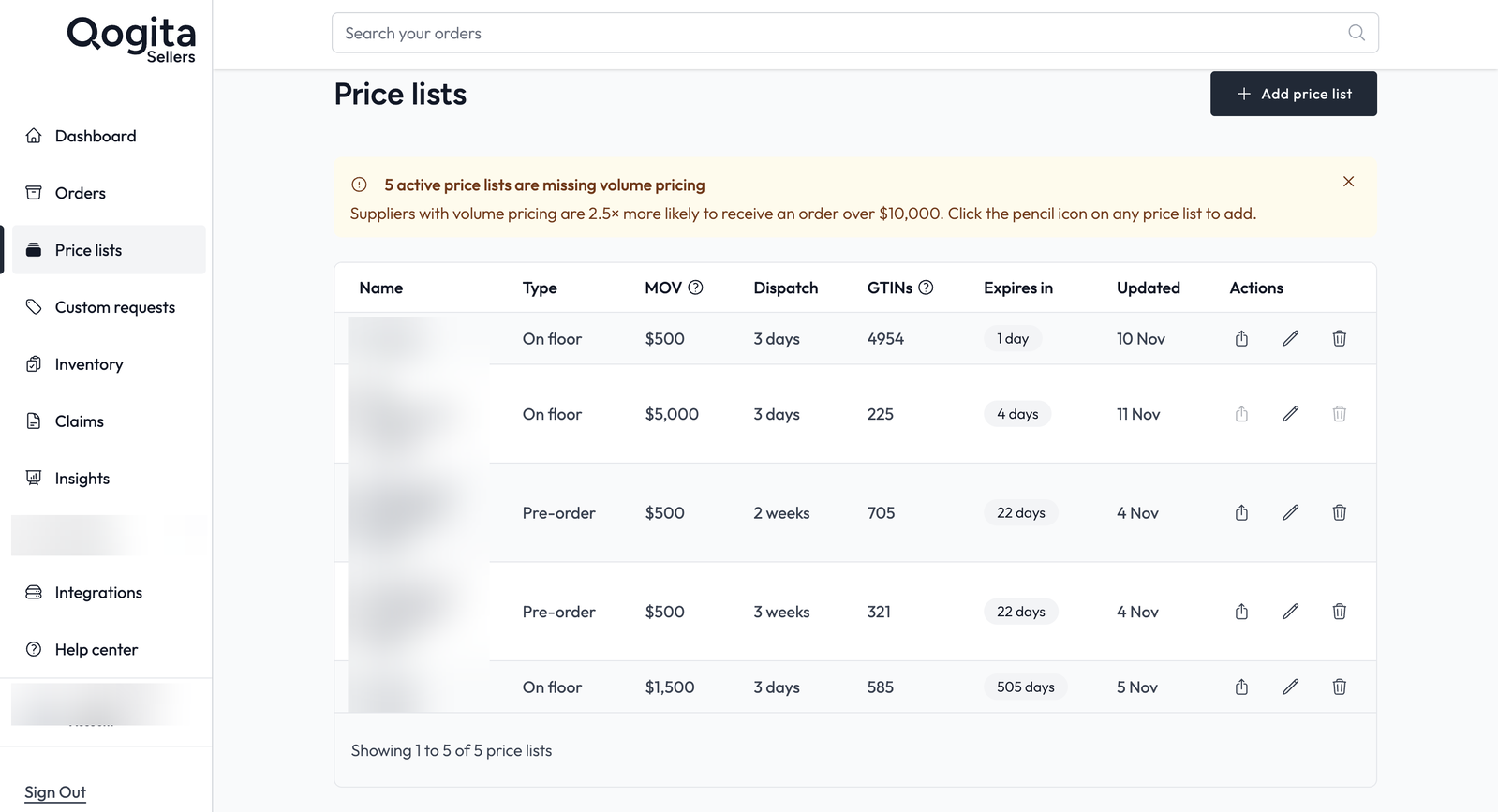
Add a new price list
Watch the price list upload video
- Go to Price Lists and click Add price list.
- Give the list a clear name and choose the stock type, On floor, Pre-order or Incoming. See Stock list types to choose the right one.
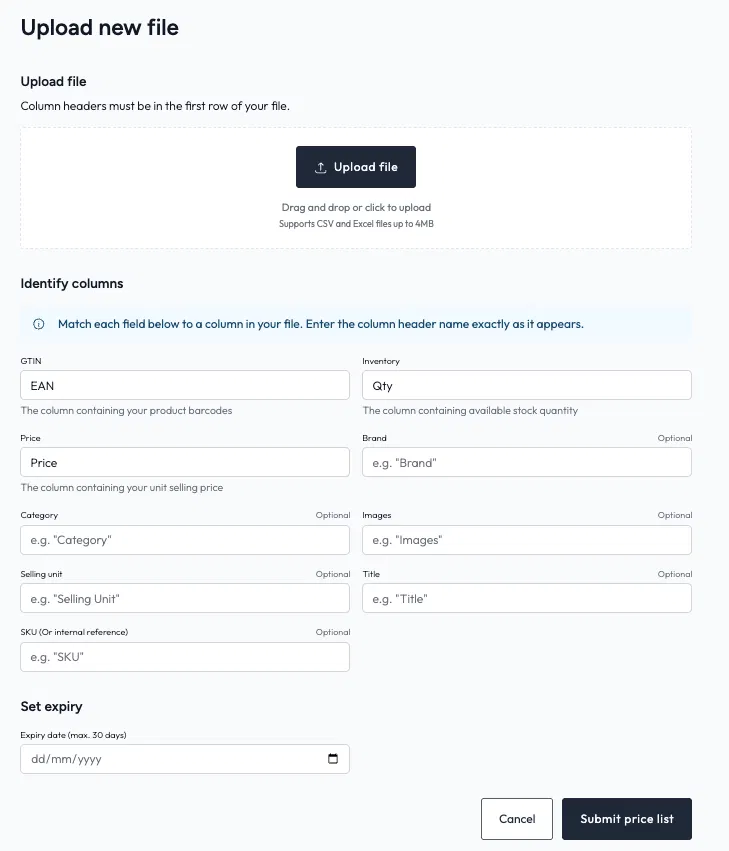
- Upload your file. It must be a CSV or Excel file of up to 4 MB, with the column headers in the first row.
- Match your columns. See the next section for how to do this.
- Set your conditions. See the section below on conditions.
- Press Continue.
- Set your volume pricing. See Bulk pricing.
- Submit the price list.
- Wait up to 30 minutes for your product barcodes (GTINs) to be added.
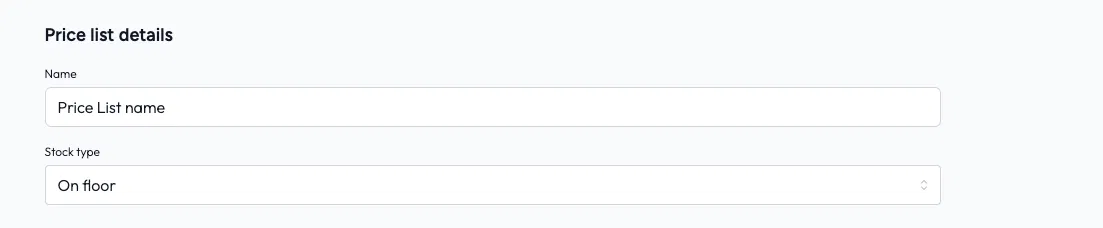
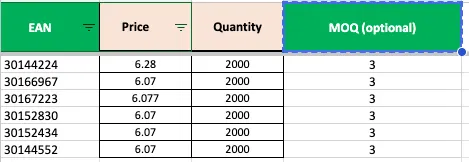
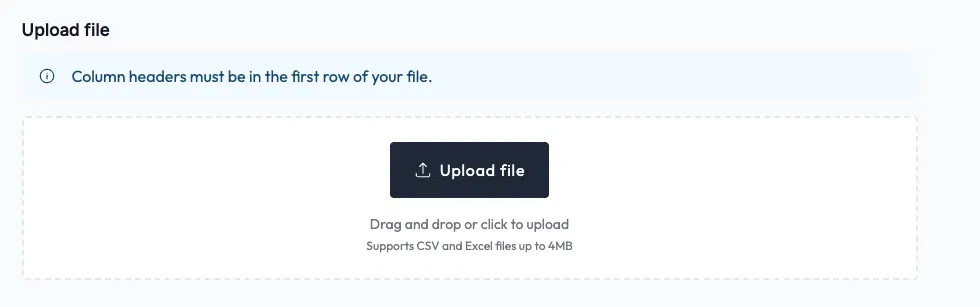
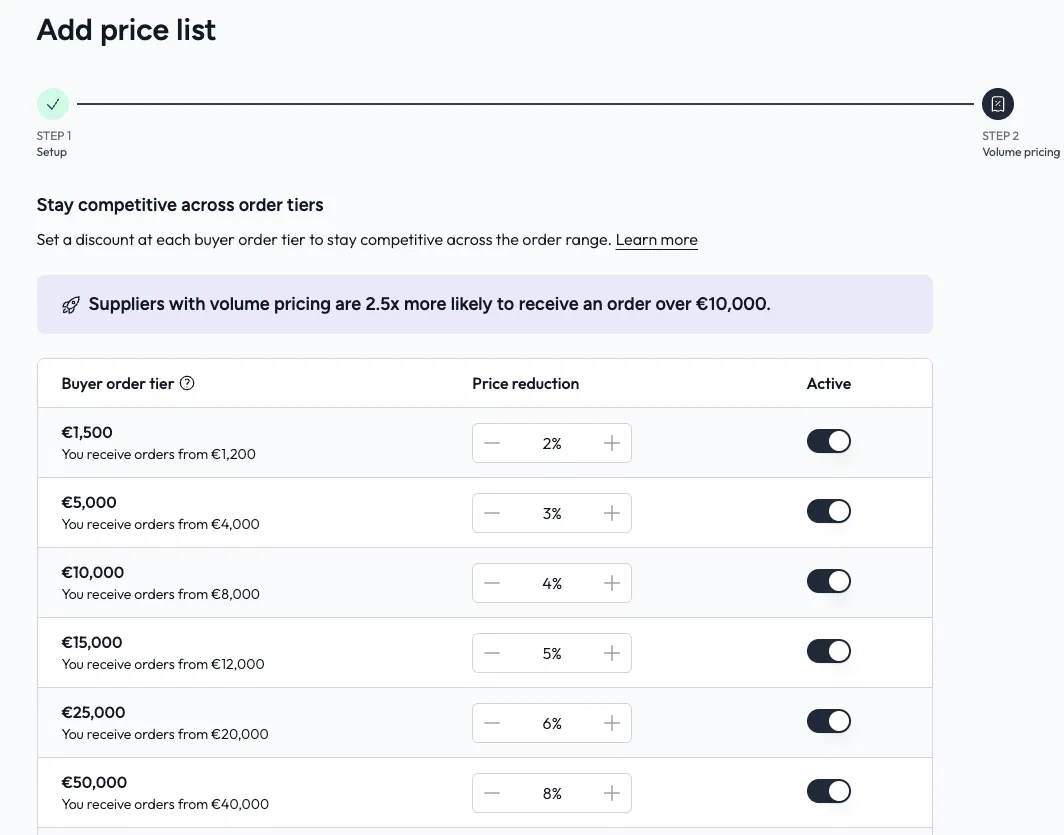
If there is a problem with your file, you see an error straight away, so you can fix it before anything goes live.
Match your columns
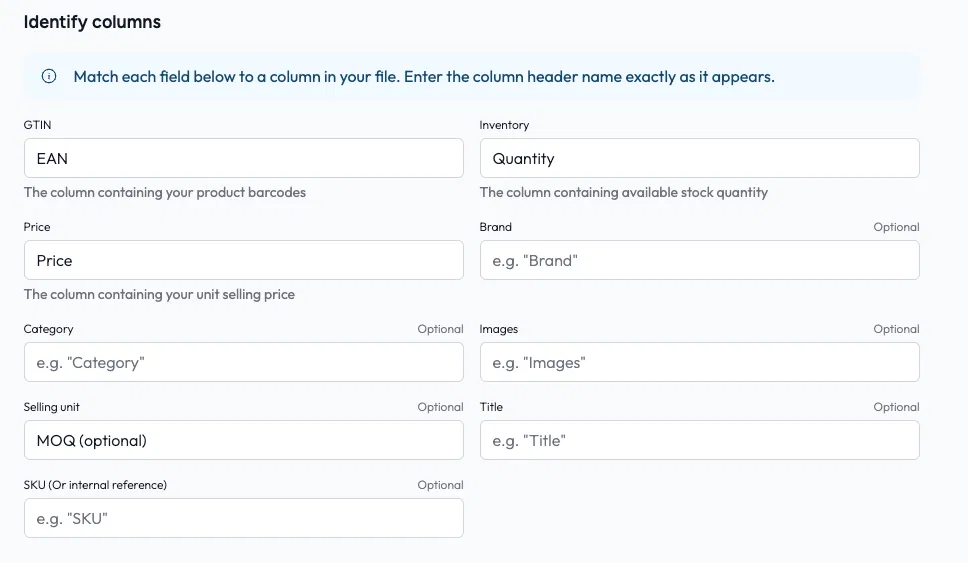
For each Qogita field, type the column header exactly as it appears in your file. Use the same capital and small letters, with no space before or after the name. The easiest way is to copy and paste the header from your file.
Three fields are required. GTIN is your EAN or GTIN barcode number. Price is your selling price per unit. Inventory is the quantity you have, or the maximum quantity you can offer, and it is also required for Pre-order and Incoming lists.
Only add Selling unit if you sell by the box. It is the number of units in one box. You can also map Brand, Category, Images and Title if you have them.
Set your conditions
Each price list has its own conditions, and they apply only to that list.
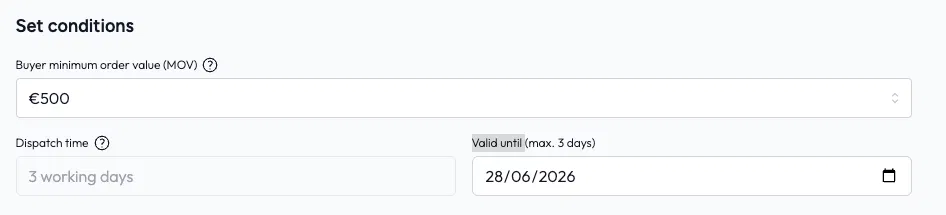
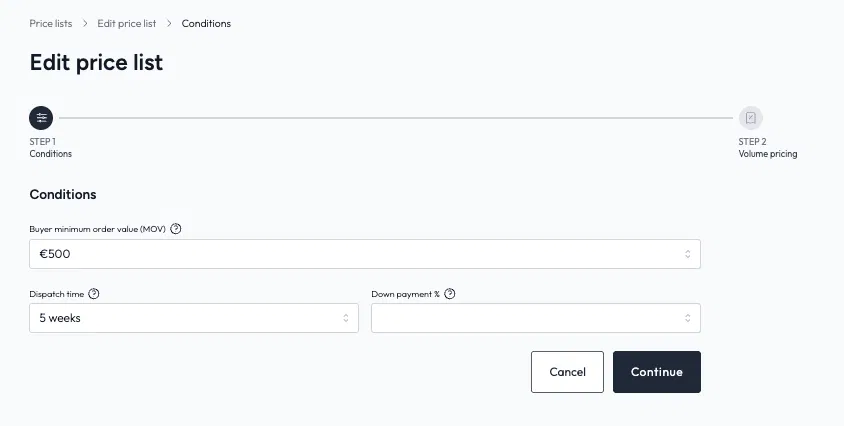
Buyer minimum order value is the smallest order a buyer must place with you. You choose from 500 up to 100,000 in your currency, which is US dollars in the United States, pounds in the United Kingdom and euros in Europe.
Dispatch time for On floor lists is always 3 working days. For Pre-order and Incoming lists, take your real dispatch time and add one extra week.
Down payment is only for Pre-order and Incoming lists. You choose 0% or 30%.
Valid until is the date your list stays live. A Pre-order or Incoming list can stay valid for up to 30 days.
Update, edit or delete a price list
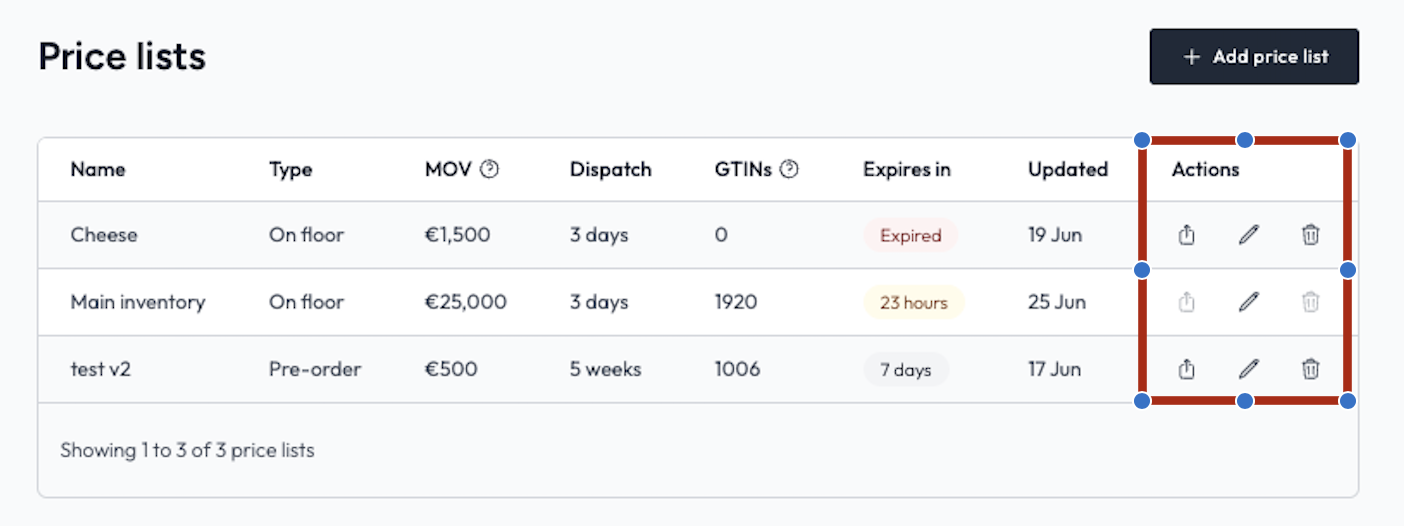
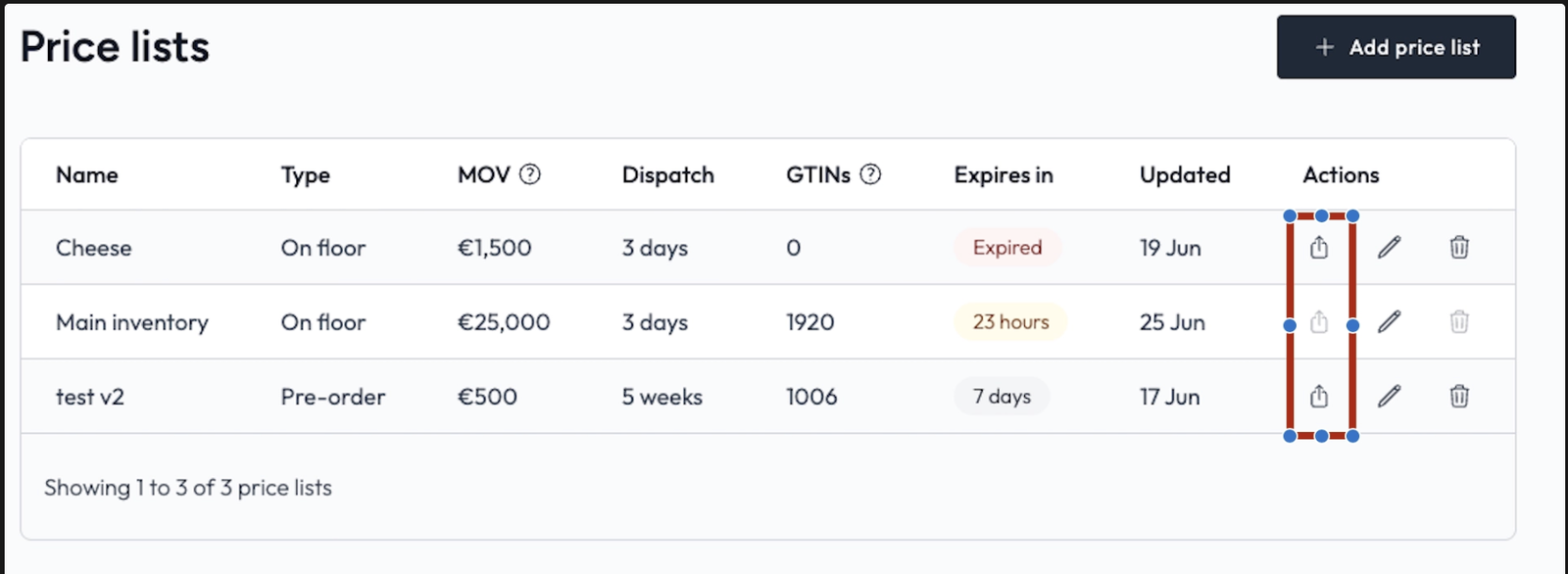
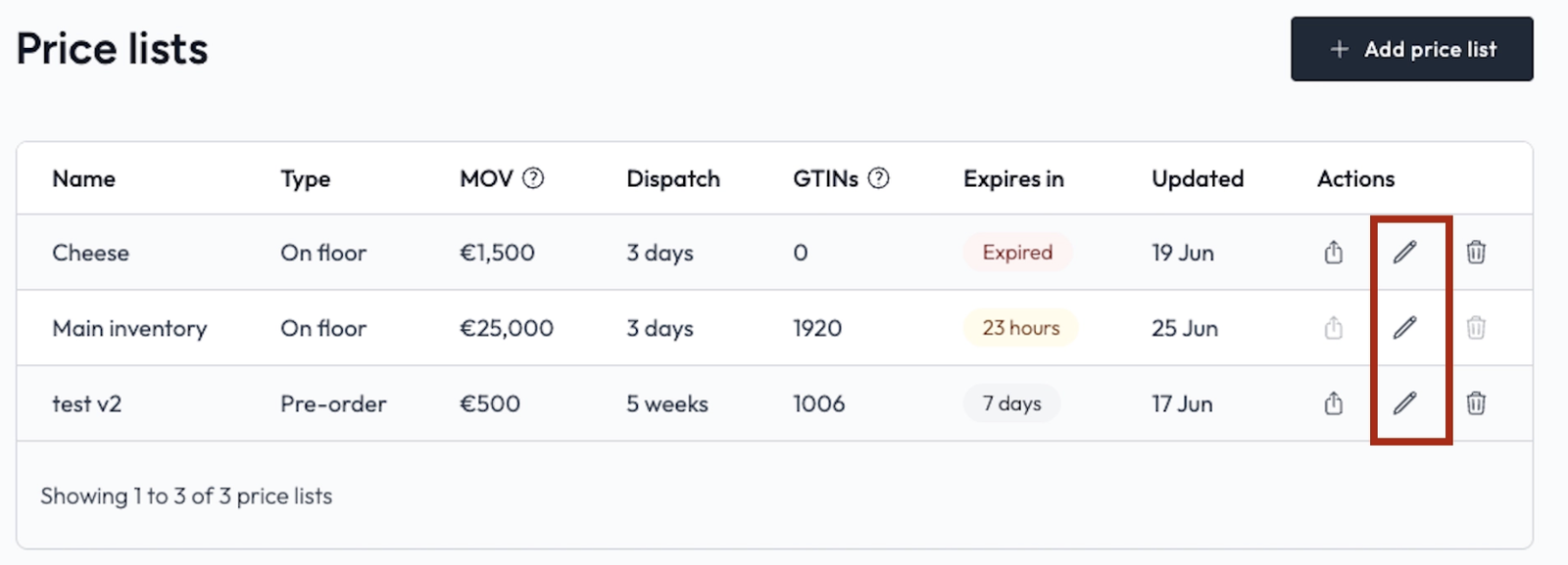
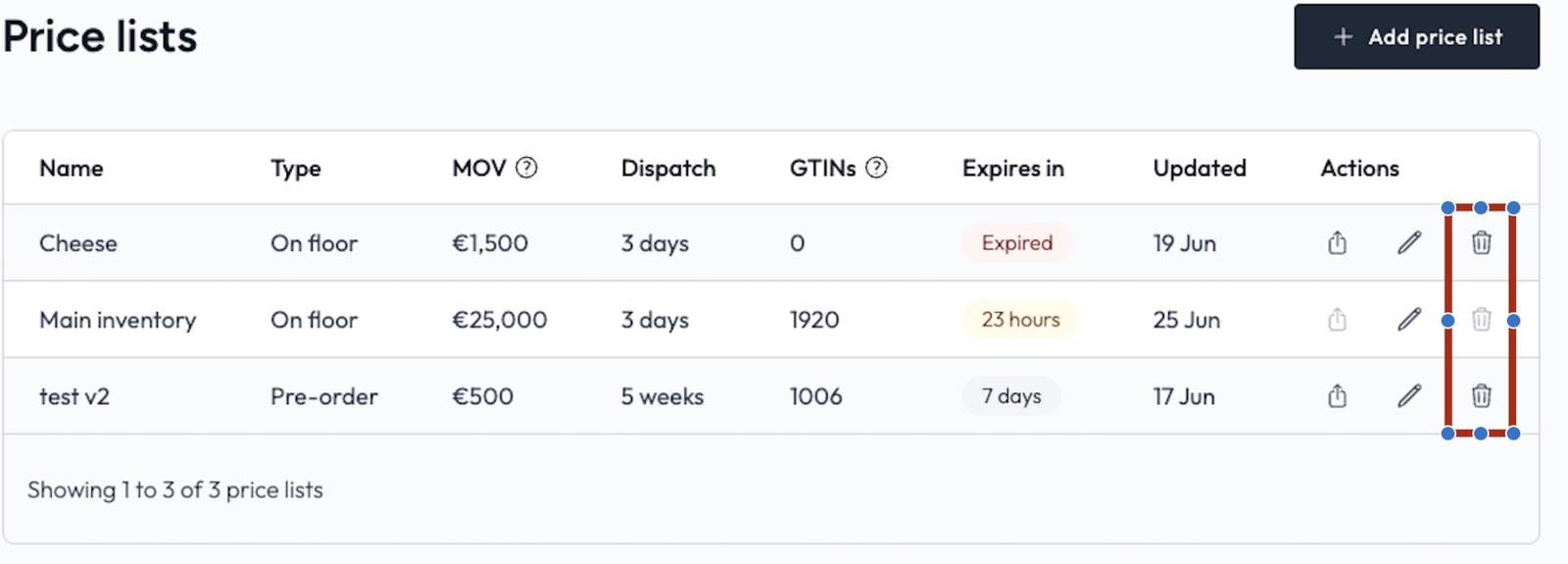
On the Price Lists page, each list has an Actions column with three icons, re-upload, edit and delete.
Replace your file with a new one
Click the re-upload icon on the list. Upload your new CSV or Excel file, match the columns again, set the new expiry date and click Submit price list. The new file replaces the old one straight away.
Change your conditions and pricing
Click the edit (pencil) icon to change the minimum order value, dispatch time or down payment without uploading your file again. Then press Continue to check your volume pricing and submit the price list. It can take up to 30 minutes for your product barcodes (GTINs) to be added.
Delete a price list
Click the trash icon on the list and confirm. The list is removed straight away.
Live feeds and other integrations are only available for On floor stock. For other ways to send your stock, see Keep your stock up to date.
Common questions

Next, choose the right list for your stock. See Stock list types.