🚀 Getting started
 Your onboarding guide
 Accessing your Qogita seller accountUnderstand your seller portalGet help from Qogita
📦 List your stock
 Upload and manage your price listSet your minimum order value
 Stock list types
 Keep your stock up to dateResponsible Person requirementsSelling electronics
🚚 Your first order
 Fulfil an order
 Packaging requirements
 Shipping dangerous goods
 Regenerate a shipping label
🇬🇧 Selling to the United Kingdom
 Selling to the UK
 Qogita's legal entity and VAT details
 Customs for parcel shipments from Germany
🇺🇸 Selling from the United States
Selling from the United StatesShip your own orders in the United States💶 Get paid
Request your paymentTrack your paymentInvoices and value-added taxGet your supporting documentsGet help with a payment problem⚖️ Claims
Understand a claimDispute a claimClaim costs and returnsKeep your claim rate low📈 Grow
Seller metricsGrowing your businessBulk pricingSelling pre-ordersEnterprise ordersEnterprise orders
These packing rules apply on top of our standard packaging rules. They are mandatory for every order that needs enterprise packaging. For the general rules on boxes, filling, pallets and labels, see Packaging requirements.
Orders that need enterprise packaging show an Enterprise badge on the New Orders and Expiring Orders cards in the seller portal. We also send you a separate email for each new order that needs enterprise packaging.

Every order that goes through Qogita's warehouse needs enterprise packaging, and this includes export orders. It depends on how the order ships, not on who the buyer is. Some orders from large buyers don't go through our warehouse, so they don't need enterprise packaging.
Use the standard box sizes
Only use these three box sizes for enterprise orders.
Box | Size |
Small | 40 × 20 × 30 cm |
Medium | 40 × 40 × 30 cm |
Large | 60 × 40 × 30 cm |
Pack one product per box
Each box must contain one product barcode (GTIN) only. If you can't fill a box with one GTIN, you can pack several GTINs together, but keep them clearly apart with dividers, inserts or protective material.
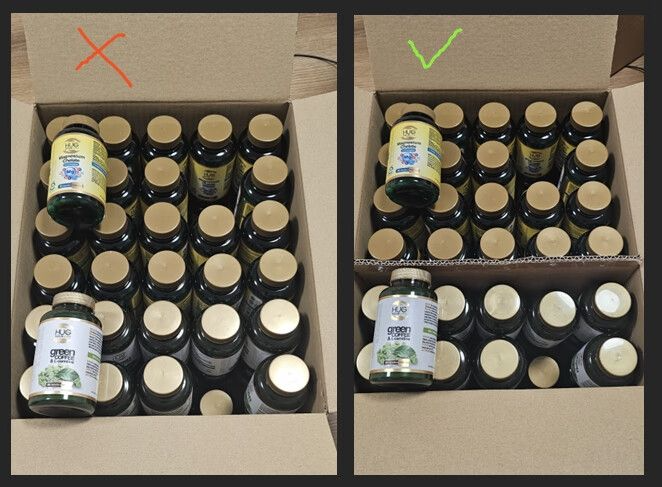
Put a packing list on every box
- Print a packing list for each box. It must be printed, not handwritten, and easy to read.
- Check that it shows the order number, your seller name, the box number, the GTINs, the product descriptions and the number of units. Add the pallet and layer numbers if they apply.
- Stick it on the largest flat side of the box, where tape or wrapping doesn't cover it.
Example packing list
Field | Example |
Order number | 123456789 |
Seller name | Your company name |
Box number | 6 |
Pallet | 1 |
Layer (if it applies) | 2 |
GTIN | Product description | Units |
5410091755218 | Conditioner 500ml | 34 |
7310791255231 | Hair Mask 200ml | 18 |
5410091763305 | Serum 100ml | 30 |
Upload a consolidated packing list
We strongly encourage you to also upload one consolidated packing list for the whole order in the seller portal before dispatch. It shows the order number and your seller name, and lists every box in the order with its box number and contents.
Upload it on the order page in the seller portal. First confirm your quantities with Confirm dispatch quantities and create your label in Step 2: Create shipping label - Ship with Qogita. Then upload your packing list under Step 3: Upload additional documents, the same place where you upload packing slips and other shipping documents. There is one upload area for each order, not one for each box or shipment, and you can upload as many files as you need. You can upload PDF files, Excel files (XLSX and XLS) and comma-separated values (CSV) files. Our team can then see your files on our side.
Once your enterprise order has shipped, see Request your payment to get paid.