🚀 Getting started
 Your onboarding guide
 Accessing your Qogita seller accountUnderstand your seller portalGet help from Qogita
📦 List your stock
 Upload and manage your price listSet your minimum order value
 Stock list types
 Keep your stock up to dateResponsible Person requirementsSelling electronics
🚚 Your first order
 Fulfil an order
 Packaging requirements
 Shipping dangerous goods
 Regenerate a shipping label
🇬🇧 Selling to the United Kingdom
 Selling to the UK
 Qogita's legal entity and VAT details
 Customs for parcel shipments from Germany
🇺🇸 Selling from the United States
Selling from the United StatesShip your own orders in the United States💶 Get paid
Request your paymentTrack your paymentInvoices and value-added taxGet your supporting documentsGet help with a payment problem⚖️ Claims
Understand a claimDispute a claimClaim costs and returnsKeep your claim rate low📈 Grow
Seller metricsGrowing your businessBulk pricingSelling pre-ordersEnterprise ordersRegenerate a shipping label
You can create a new shipping label yourself at any time in the seller portal. A new label replaces the old one and books the carrier pickup again for the next working day. The old label stops working, so only ship with the new one.
Create a new label
- Open the order in the seller portal.
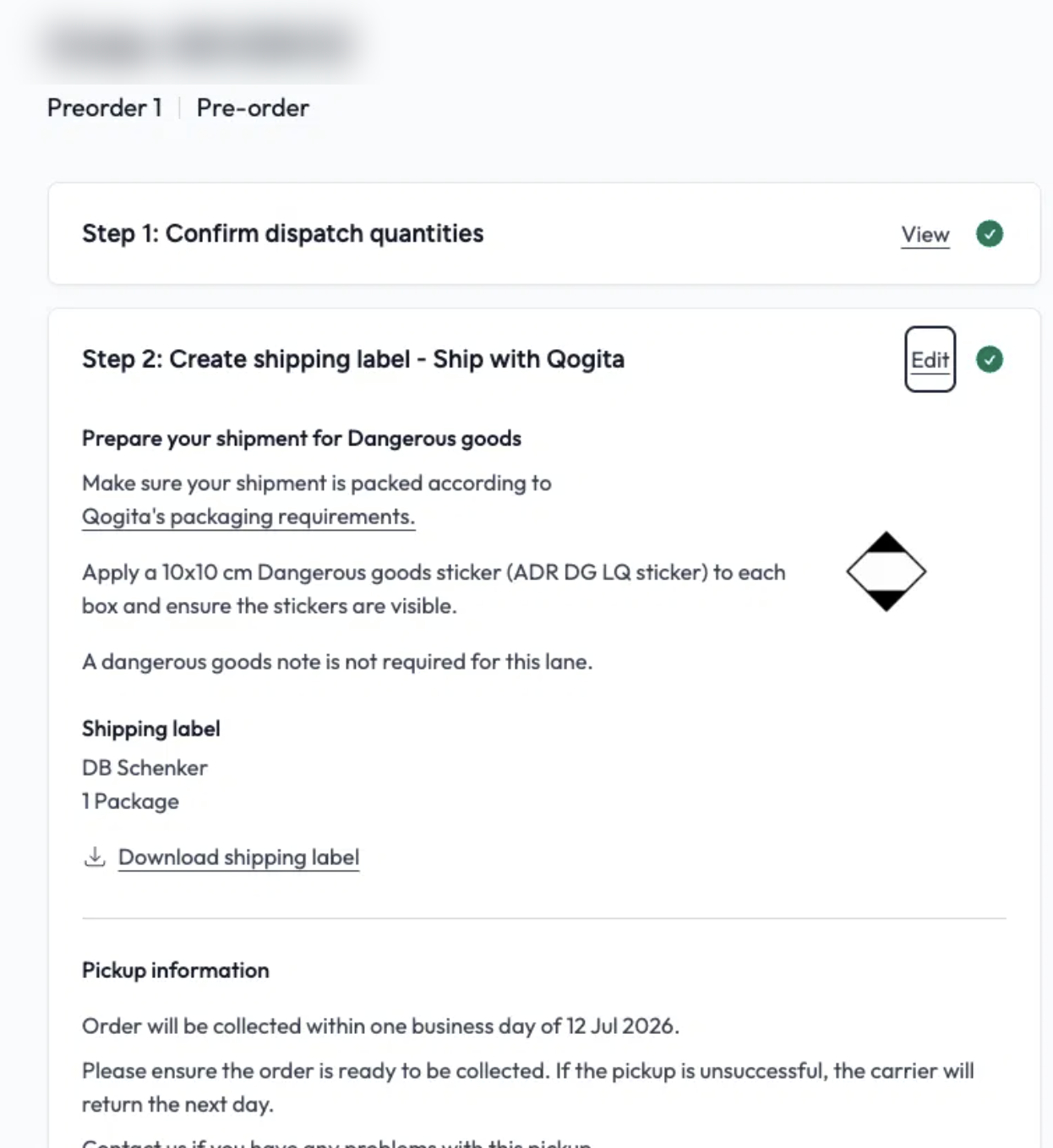
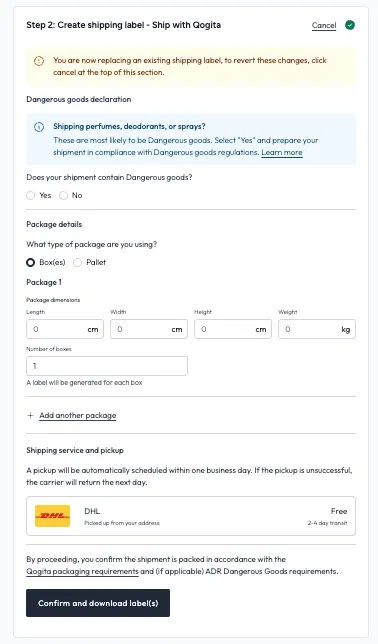
- Find Step 2 Create shipping label and click Edit.
- Enter your package details again, exactly as the parcel is packed now. This means the length, width, height, weight and number of boxes. Check your dangerous goods answer too.
- Click Confirm and download label(s).
- Print the label, stick it clearly on the outside of each box and have the parcel ready for collection.
When you need a new label
The most common reason is that a parcel came back to you, for example because delivery failed, the buyer refused it or it was damaged in transit. Create a new label for the same order and send it again.
You also need a new label if you entered the wrong size, weight or number of boxes, if you repacked the order into a different number of boxes or moved between boxes and a pallet, or if your dangerous goods answer was wrong. See Shipping dangerous goods if you are not sure.
If your label is lost, damaged or won't print, just create a new one.
If the delivery address is wrong
You can't change the buyer's address yourself in the portal. Email success@qogita.com first. We correct the address, and then you can create a new label with the steps above.
Once your order has shipped, see Request your payment to get paid.