🚀 Getting started
 Your onboarding guide
 Accessing your Qogita seller accountUnderstand your seller portalGet help from Qogita
📦 List your stock
 Upload and manage your price listSet your minimum order value
 Stock list types
 Keep your stock up to dateResponsible Person requirementsSelling electronics
🚚 Your first order
 Fulfil an order
 Packaging requirements
 Shipping dangerous goods
 Regenerate a shipping label
🇬🇧 Selling to the United Kingdom
 Selling to the UK
 Qogita's legal entity and VAT details
 Customs for parcel shipments from Germany
🇺🇸 Selling from the United States
Selling from the United StatesShip your own orders in the United States💶 Get paid
Request your paymentTrack your paymentInvoices and value-added taxGet your supporting documentsGet help with a payment problem⚖️ Claims
Understand a claimDispute a claimClaim costs and returnsKeep your claim rate low📈 Grow
Seller metricsGrowing your businessBulk pricingSelling pre-ordersEnterprise ordersKeep your stock up to date
Keeping your stock up to date is the most important thing you can do to sell more on Qogita. Our Terms and Conditions explain the quality we expect from your stock lists.
You can update your stock in three ways. You can upload a file in the seller portal, connect a live URL or File Transfer Protocol (FTP) feed, or connect your system through an application programming interface (API). Some older accounts still send stock by email. Integrations, which means a live feed, API or email, are only available for On floor stock. For Pre-order and Incoming lists, upload a file in the seller portal.
Method | How it works | What you need to do |
Portal upload | You upload a file on the Price Lists page | Upload a new file several times a week as your stock changes |
Live URL or FTP feed | We pick up your feed automatically | Keep your feed up to date and reachable |
API | Your system connects directly to Qogita | Contact us to set it up |
Upload a file in the seller portal
This is the simplest and most reliable way to update your stock by hand. It works for On floor, Pre-order and Incoming lists.
Go to Price Lists, add a new price list or re-upload an existing one, and submit it. For the full steps, see Upload and manage your price list.
Connect a live URL or FTP feed
If your system can create a live link to your stock file, you can connect it once and stop uploading by hand. We work with any system or e-commerce platform that can produce a URL or FTP feed with your GTINs, prices and stock. We also offer a direct Base.com integration for stock.
By default we check your URL or FTP feed for new data every 15 minutes, so a change in your feed normally shows on Qogita within about 15 minutes. If you need a different timing, email supplier-integrations@qogita.com. We also run a live stock check right before an order is placed.
Your feed needs at least the GTIN or EAN, the price and the inventory for each product. You can also add the SKU, product name, brand and image URLs. Keep the brand in its own field and out of the product name. Each image URL must end with the image extension, such as .jpg or .png.
You can connect your feed yourself on the Stock ingestion page in the seller portal. The integration is linked to your company, and you can't change the company on this page. Under Price list upload method, choose Email, URL Feed or FTP. For a URL feed, you add your price list URL and choose the file type, such as XLSX, the authentication method, and the file encoding and port if you need them. If your server needs whitelisting, you may need to add our IP addresses. The page has a link to them.
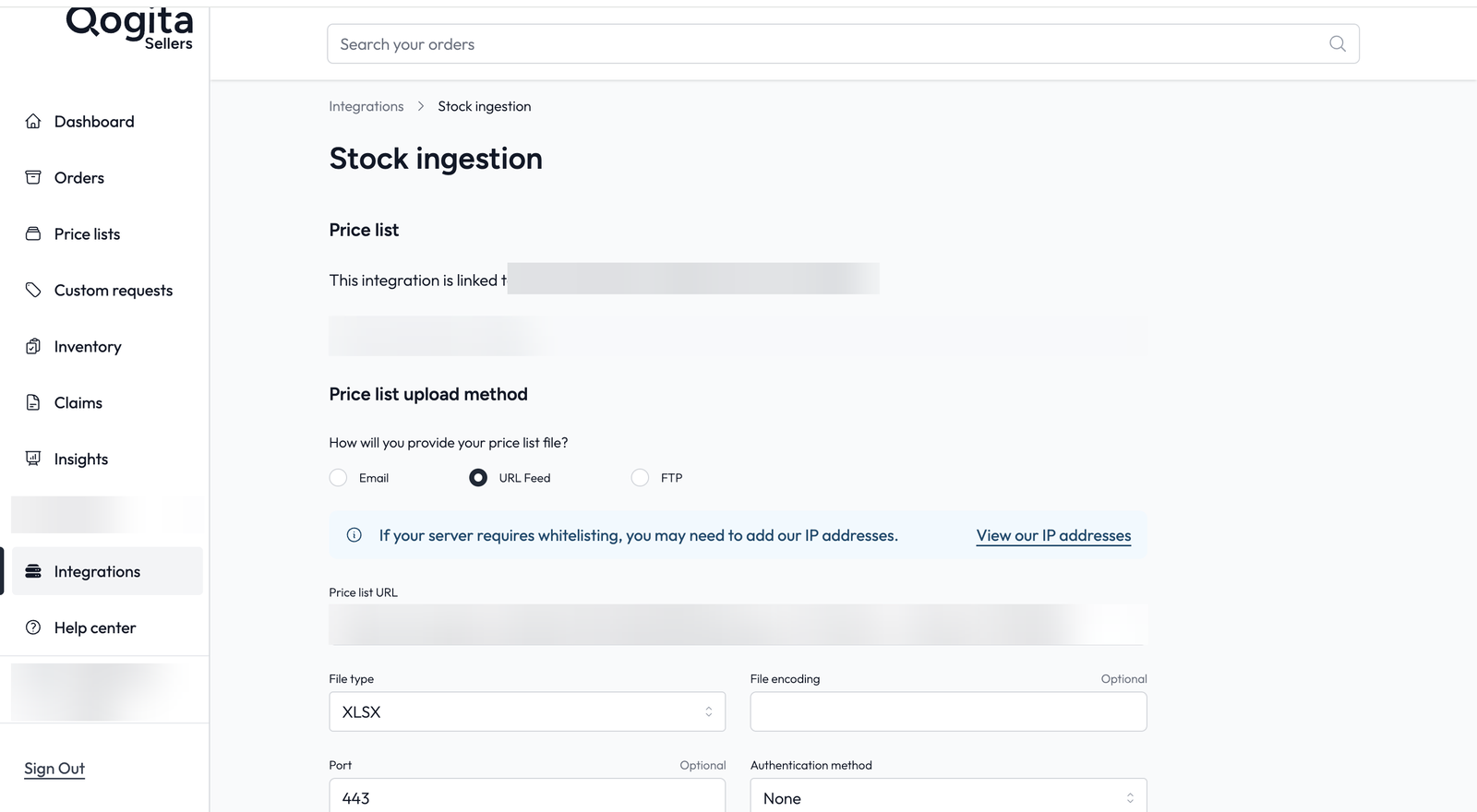
For help with your setup, see the Qogita Seller Integrations page. For integration issues or questions, email supplier-integrations@qogita.com. If you share your feed details with us instead, we need your URL or FTP details and any login needed to reach them, the file type (JSON, CSV, XLS or XLSX), the encoding if it is not UTF-8, your column titles for GTIN, inventory and price, the currency of your prices, and how often the data is updated.
We only need read access. Our stock integration reads from your system but never writes to it or changes it. Keep your link active and tell us if your login details change.
Once your feed is active, you manage prices and stock in your own system and Qogita picks up the latest data. There is no need to update prices or stock in Qogita by hand.
Connect through API
If you sell high volumes or your stock moves fast, you can connect your warehouse management system directly to Qogita through API.
A stock file sent through API goes live within 30 minutes.
You can also connect your orders. Qogita can send orders to your system using webhooks, and you can automate order handling and get pricing insights through the Qogita API. You can use test orders to check your setup before you go live. You do not need to ship a test order, just decline it in the seller portal.
All integration options and documentation are on the Qogita Seller Integrations page. To get started, contact your account manager or email supplier-integrations@qogita.com.
Send your stock by email
If you joined Qogita before portal upload was available, you may still send your stock file to your own stock email address. This still works, but we recommend moving to portal upload or a URL or FTP feed, because email updates often break after small changes to your file.
If you still use email, keep the same file format, column names and sender email address that we set up for your account. Use a .xlsx, .xls or .csv file with a single sheet and no hidden tabs. Your file needs the GTIN, the stock available per unit, your net price per unit, and the MOQ if you sell by the box, layer or pallet. For On floor stock, send an update every 3 days. A stock file sent by email goes live within 30 minutes.
If you change your column headers or file structure, your file will fail and buyers will no longer see your products. If you need to change your format, columns or sender email, contact your account manager first so we can set your account up again.
Check that your stock is live
You can see how many offers were added on the Price Lists page, and an overview of all your On floor stock on the Inventory page.
Common questions
Next, when your first order comes in, see Fulfil an order.